We met some friends for brunch a few weeks ago at the Phinney Market. L ordered the corned beef hash and was raving about it. I’m not a big fan of corned beef but when I tasted it, it’s the best corned beef I’ve ever had. I immediately recognized the secret to the flavor: it was slow-cooked in a red-wine braise.
Cuing off of this, earlier this week, we wanted to make pulled pork in the slow cooker. So I took a page from Julia Child (ok, I left the page in the cookbook, but read from it), and adapted her recipe for braised red cabbage that I had tried a few month previous.
1 lb. pork loin roast
1 medium onion, halved and sliced
1 apple, cored and sliced
2 cups hearty, red wine
2 cups chicken stock
1 bay leaf
3 cloves
1/8 tsp. nutmeg
1/2 tsp salt
pepper to taste
Place roast into the crock pot, add wine and stock, then the rest of the ingredients. Simmer on high for four hours or until the pork falls apart with a fork. Remove pork from the pot, straining the broth (can save for another purpose if you want). Serve with red cabbage slaw.
At Bookr we are moving our JavaScript to CoffeeScript mostly with the intent of making things more readable. I took some time out this weekend to familiarize myself with it by working through our code and doing some of the conversions. I’m not convinced that everything is more readable (example below) but it does make our Jasmine tests much easier to read.
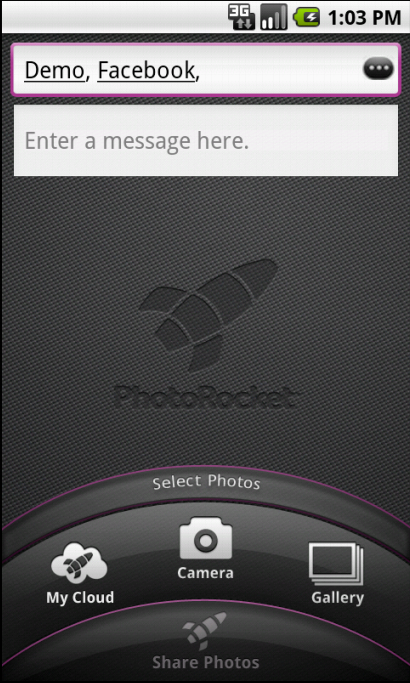
Contacts show as friendly names and are underlined
While working with PhotoRocket, I designed a different edit experience for their Android app to treat contacts similarly to the other PhotoRocket client apps. Specifically, I wanted the EditText control to render contacts using their “friendly name” and to treat those as a single entity for navigation and delete.
As you can see in the image at right we chose to underline the friendly names which provides a visual indicator that they are a unified entity and are different than typed in text. This, as well as handling movement events and delete events around the ‘entities’ was possible because of Spans — a feature that allows any object to be attached to points in a CharSequence.
All of our contact data objects implement an abstract class called Recipient that includes basic email and friendly-name data.
public class Recipient {

    private String name;
    private String email;

    public String getName() {
        return name;
    }

    public String getEmail() {
        return email;
    }

    public void setName(String name) {
        this.name = name;
    }

    public void setEmail(String email) {
        this.email = email;
    }

    @Override
    public String toString() {
        return String.format("\"%1$s\" <%2$s>", name, email);
    }
}
EditText fields have Editable content which implements Spannable. The edit control in the form is a MultiAutoCompleteTextView which requires an Adapter to provide and filter the data and place it in the EditText control. Using the filter was the perfect place to convert selected text into a Spannable and add it to the EditText field. So I overrode the filter’s convertResultsToString method to have it handle Recipient items in the result list specially.
        @Override
        public CharSequence convertResultToString(Object resultValue) {
            if (resultValue instanceof Recipient) {
                return ((Recipient) resultValue).toCharSequence();
            }
            return super.convertResultToString(resultValue);
        }
And then added special handling to the Recipient‘s toCharSequence method that inserts the spans.
    public CharSequence toCharSequence() {
        String name = getName();
        SpannableString spannable = new SpannableString(name);
        int length = spannable.length();
        if (length > 0) {
            spannable.setSpan(
                    new RecipientSpan(this),
                    0,
                    length,
                    Spannable.SPAN_EXCLUSIVE_EXCLUSIVE
            );
        }
        return spannable;
    }
What this does is to create a SpannableString using the text of the recipient’s friendly name, then add a span from the beginning to the end of the returned string that includes a reference to the Recipient object. So with the RecipientSpan class I am able to attach a Recipient data object to any part of the text. (The MultiAutoCompleteTextView handles appending this to the entire Editable string in the EditText on the form.)
    public static class RecipientSpan extends ClickableSpan {
        private final Recipient recipient;

        public RecipientSpan(Recipient recipient) {
            super();
            this.recipient = recipient;
        }

        @Override
        public void updateDrawState(TextPaint ds) {
            ds.setUnderlineText(true);
        }

        @Override
        public void onClick(View view) {
        }
    }
Spans are handled specially within the framework, so this design depends on the framework authors not changing how ClickableSpans are used. I subclassed ClickableSpan because it’s rendered at the right time and because it nicely selects the entire span when you touch or click on the text. I overrode the onClick to do nothing because I actually don’t want to do anything with clicks here. Finally, I set the drawing context to underline the text.
Interestingly the framework is extremely limited by the choices available for rendering or drawing in the edit field. Most of the rendering is hardcoded or uses explicit choices (like setUnderlineText). While you can render images on the beginning of a line or completely behind the text, it’s harder to render graphics around or with padding and there is no span that allows the object to entirely draw itself unless it replaces the text (like an emoticon).
If you’re struggling with the span concept think of how it would be applied to rendering an HTML page. That helped me make sense of what drove the current design decisions. Take a wander through the span classes in android.text.style to get a better idea of what is supported. Also look at TextPaint and it’s inherited methods to see what can be modified in terms of rendering.
Scrolling or moving the cursor
It’s great to have the underlining and pretty names (and still get access to the underlying object), but we really wanted this to feel right. One behavior that was important to me was that if I move the trackball or use d-pad arrows to move the cursor through the edit field, it should highlight the entire Recipient, rather than move the cursor one letter at a time through the text.
While I could have captured the keydown/keyup and trackball events and responded to them, I found that the edit controls take a MovementMethod class that need only respond to certain directions. The documentation for the interface itself says it “should not be implemented directly by applications.” I took that to mean it was OK to subclass the ScrollingMovementMethod class that handles scrolling content within an edit field. I ended up coding something similar to how the LinkMovementMethod works, except that I made it work more like I expect.
The code is too lengthy to include here in it’s entirety but basically has two modes: left/right and up/down. In both cases I find all the RecipientSpans that are in the visible text region. For left or right, I find the span or word character immediately before or after the cursor, respectively, and select it. Moving left looks like this:
                int beststart, bestend;

                beststart = -1;
                bestend = -1;

                for (ClickableSpan candidate1 : candidates) {
                    int end = buffer.getSpanEnd(candidate1);

                    if (end < selEnd) {
                        if (end > bestend) {
                            beststart = buffer.getSpanStart(candidate1);
                            bestend = end;
                        }
                    }
                }

                if (beststart >= 0) {
                    if (selStart - bestend > 0 && WORDS.matcher(TextUtils.substring(buffer, bestend, selStart)).find()) {
                        Selection.setSelection(buffer, selStart - 1);
                    } else {
                        Selection.setSelection(buffer, bestend, beststart);
                    }
                    return true;
                }
The WORDS constant is a pre-compiled regex Pattern to look for any ‘word’ characters (Pattern.compile("\\w")). I used this so that when the cursor gets to the edge of a Recipients name, it skips the ‘, ‘ separator and moves to the next RecipientSpan or any email address typed in.
For up and down movements, I wanted to have the cursor move to the previous or next line and select the recipient whose name was above or below the current cursor location. This differs from the LinkMovement implementation where ‘up’ movements is the same as ‘left’ and ‘down’ is the same as ‘right’. In this case I parse the text in the target line and look for any spans to select. Here’s what the up movement looks like:
Having made movement through the field feel right, the next step was to handle deletes. If a RecipientSpan is selected and I press delete on the keyboard it will delete the recipient as expected. However, if I just have a blinky cursor and start deleting characters I want to have it delete the recipient as a single entity. I handle this by looking for keystrokes with a View.OnKeyListener.
                if (view instanceof EditText) {
                    Editable buffer = ((EditText) view).getText();
                    // If the cursor is at the end of a RecipientSpan then remove the whole span
                    int start = Selection.getSelectionStart(buffer);
                    int end = Selection.getSelectionEnd(buffer);
                    if (start == end) {
                        Recipient.RecipientSpan[] link = buffer.getSpans(start, end, Recipient.RecipientSpan.class);
                        if (link.length > 0) {
                            buffer.replace(
                                    buffer.getSpanStart(link[0]),
                                    buffer.getSpanEnd(link[0]),
                                    ""
                            );
                            buffer.removeSpan(link[0]);
                            return true;
                        }
                    }
                }
This is pretty straightforward — look for any RecipientSpans in the selection (i.e. where the cursor is), if one is found remove the visible text and the span. While I only look for a single span here (because I don’t expect to have overlapping spans) in another implementation it might makes sense to loop through and remove all spans that are returned.
This took far too long to find, mostly because the documentation doesn’t make sense (to me) and because the one hit on the android-developers list looked like the wrong answer, when it fact it’s right.
On the NPR News for Android app, we have a player at the bottom of the screen. This is handled with a FrameLayout in activity layouts. For activities that had an EditText field, the keyboard would push the player up and cover the important parts of the screen. See the image at right for the ‘before’ issue.
I can see this being a major problem for apps that host a banner ad at the bottom of pages (and saw a post on StackOverflow to that effect). Clearly you don’t want the ad to cover the content when your user is trying to type.
The solution was simple enough for us: mark the activity with windowSoftInputMethod = adjustPan in the Manifest and this resolved it.
Unfortunately, windowSoftInputMethod is not very well documented. The reference says that there are two possible choices, adjustPan and adjustResize and that activities should always select one or the other.
adjustResize
The activity’s main window is always resized to make room for the soft keyboard on screen.
adjustPan
The activity’s main window is not resized to make room for the soft keyboard. Rather, the contents of the window are automatically panned so that the current focus is never obscured by the keyboard and users can always see what they are typing. This is generally less desirable than resizing, because the user may need to close the soft keyboard to get at and interact with obscured parts of the window.
What should be made more clear is that “resize” doesn’t mean scale or zoom here, it means that the container for your layout is compressed and every element is realigned to try to make it fit best. While this may make sense for applications that have content above or below the edit field that they want visible while editing, it isn’t what we were looking for.
By using adjustPan the layout manager leaves the activity as it was and only shows a portion of it — the part that would be visible if the keyboard were laid over the activity. Exactly what we want.
Tonight L made enchiladas for some friends. We just got back to town and we made this up out of what was in the cabinet and fridge. It was pretty good and we didn’t even have to go to the store.
So one of the biggest pains to mobile development with emulators is that starting up the emulator takes forever. Android tools version 9 addressed this finally by letting you take a snapshot of the emulator, just like you would do with a virtual machine. Here’s how I got my emulators really snappy.
First on the initial launch make sure you select Save to snapshot. Get the emulator up and running and put it into the state you want. I like to have it start at the desktop (home screen) view. Now close the emulator. I found that it wasn’t very responsive when closing, so wait a bit, watch the mouse icon go to “busy” and let it write everything to disk.
Now, launch the emulator again and this time uncheck Save to snapshot but make sure Launch from snapshot is chosen. Voila! The emulator launches quickly. And when you save it it shuts down quickly because it’s not saving anymore.
One caveat I’ve found with the emulator. When moving from network to network (i.e. one wifi point to another) for some reason the emulator loses Internet access (returning “host cannot be null” for HTTP requests). Unfortunately this means I have to have a save emulator snapshot for each of my common network and launch a new one, not from snapshot, when I’m on a new network. Anyone have any idea how to fix this?
While working on OnCompare, over the last month, one of the controls we wanted to support was a slider, that let you choose between a range of values, as you can see in the example at right. jQuery-UI provides a slider control and Ruby on Rails already has jQuery built in (we’re using Rails 3). The challenge was that all of our controls are rendered from Formtastic.
Fortunately, Formtastic allows you to add new control types by extending Formtastic::SemanticFormBuilder. To do that I changed config/initializers/formtastic.rb to specify our own builder:
The biggest challenge has been generating a large number of records, but I think we can do that with loops and factory_girl:
The other place to use large data is to stress test the system. … I need to know that the algorithm will continue to be responsive when we have 300 products. At this point, I’m looking at running loops around factory_girl calls so that it will generate most of the non-essential information. [Settings] up a single product matrix may take a dozen records, but I can loop over that 300 times and factory_girl will automatically create records with new names (using the sequence method shown in the factory definitions above).
before do
  category = Factory.create(:category)
  300.times do
    product = Factory.create(:product, :category => category)
    12.times do
      Factory.create(:question, :category => category, :product => product)
    end
  end
end
As a follow-up, we also added Faker to our gem set, which has a ton of handy methods for mocking up data. So, for example, I can set up a factory definition with Faker::Lorem.words(3) for the name or description of a product and 300 products will all look different. It’s pretty sweet.
So, I’m in the middle of an interesting experiment. A group of guys I know invited me to join them for a 3-week run to try to build a technology company. That means software, market and customer base in three weeks. The product we’re working on, OnCompare, will allow you to rank and find on-line services, based on the most critical criteria for the class of service. For example, looking at email services you could decide whether templates are important or whether you need survey support. Because we’re doing this in three-weeks, we also decided to blog the whole thing so that the process is (mostly) transparent.
My role, along with entrepreneurial advisor, is straight dev work right now. But I am evaluating this as a technology tool, because I see this kind of rapid prototype practice happen in events but rarely within companies. After attending some 8-hour Startup events several years ago I wanted to try stopping our consulting company for a day to run the whole company on a single project. From a consulting perpective this could be a huge differentiator: while large projects take a while, slipping them a day is no big deal; but if a potential client can be sold with, “we’ll get something up and running by the end of the week” that could be the closer. We never got to do it while I was there because (a) we never had a potential client that needed that and (b) we didn’t have unanimous support, which I felt we had to have.
Do you think this whole-team/company sprint idea (e.g. 8-hour Startup, Startup Weekend, Hackathons, etc.) can be integrated into your company (Facebook tried it)? Clearly there’s desire for it among developers. Can that be supported and used to develop new ideas, to break the monotony of the daily drudgery?
My colleague Ruben Ortega wrote Why do Software Developers Tolerate “Crunch Time”? last summer for the Communications of the ACM, which sparked a deep conversation about this topic. Sometimes we want the herculean effort to feel like we’ve accomplished something. But does a full-team sprint like this produce something you can put into production?
Most of these events are focused technical accomplishments (engineering, some testing, graphics). I recognize that customer development is a long-running process but clearly you either have an idea to start testing or a market demand to try to fit when you start this event. Do you think that marketing and (some) customer development can happen in a short time too? While three-weeks is much longer than a weekend or a hackathon, we’re testing whether it is long enough to build a customer base.
I have been making enchiladas for years and enjoy it. It’s always a favorite, but the irony is that my “world renowned enchiladas” change with each time I make it. Some are green, most are red. Some are vegetarian, often they have chicken. So, here’s the start of cataloging of all my variations.
This is Kale Enchiladas in Green Sauce. This recipe is vegetarian.
The Upshot
Lots of autumn in this recipe. It’s hearty and flavorful. The sauce came out somewhat thick, so I added about 2 Tblsp of water per cup of sauce as I used it both for heating tortillas and covering the dish.
The Recipe
¾ pound tomatillos (about a dozen medium ones)
4 mild green Anaheim peppers
3 spicy green Serano peppers
4 cloves garlic
3 tablespoons olive oil
½ cup chopped onion
1 medium shallot
1/3 cup cilantro
¼ teaspoon cinnamon
¼ teaspoon salt
1 medium onion, chopped
1 clove garlic, minced
1 large bundle kale (about 1 pound), chiffonade
½ pound Colby-Jack cheese
12-14 corn tortillas
Preheat the oven to 350°.
To make the sauce, blanch tomatillos in boiling water, about 5 minutes, until green but don’t let them lose color. Put into a food processor with peppers, garlic, oil, onion, shallot, cilantro and spices. Process until smooth.
For the filling, saute the onion in a large pan over low heat until translucent. Add garlic and cover the pan; let cook for about 30 seconds, or until the garlic is fragrant. Add the kale, cover and cook until the kale it reduced to about 1/3 original size. Let cool.
In a small sauce pan, about the diameter of your tortillas, heat the sauce a cup at a time, or enough to fill the pan to one inch. Keep the flame low and bring it up to warm, but below a simmer (you don’t want to burn your fingers). Place a tortilla in the pan, buried in the sauce and let cook for a couple minutes. You want the tortilla to soften enough to roll, but not so much that it falls apart. (Fortunately, tortillas come in packs of 24 or 30 or 100.) When the tortilla is soft, remove from pan and place into a 9×13 baking dish. Immediately start another tortilla in the pan. Place a generous handful of kale filling in the middle of the tortilla, spread into a line from one side to another (make sure you get some onions in each). Add a small pinch of cheese. Roll the tortilla until it’s wrapped itself and push to the edge of the pan.
Repeat this with the next tortilla, pushing up against the one previous one in the pan. My preferred pan fits two rows of 6 tortillas perfectly. Feel free to move and adjust the tortillas to get as many enchiladas in the baking dish as you can.
When the baking dish in packed, pour the remaining sauce over the enchiladas, being sure to cover the edges. The tortilla edges that are rolled to the top may burn or dry out when cooked if they don’t have some sauce on them. Spread the rest of the cheese on top, adding more if desired.
Put the enchiladas in the oven and bake for about 20 minutes. The cheese should be melted, the filling should be hot, but you don’t want to dry them out.




 Jeremy Wadsack